
tutorial · 2026-06-21
UE5 Sequencer: Drive a Character Along a Spline Path for Cinematics
Use Spline Component + Sequencer to make a character follow a precise path with camera cuts, perfect for in-engine cinematics and virtual production.
The problem: characters that walk exactly where the story needs them
In gameplay you usually want free movement. In cinematics you want control. When a character must walk from point A to B at exactly the right speed, turn at the right moment, and sync with dialogue or VFX, free locomotion breaks down. The reliable solution in UE5 is a Spline Component combined with Sequencer.
This pattern appears in countless YouTube tutorials because it is simple, deterministic, and works for both gameplay cinematics and full virtual production shoots. The character (or any actor) follows the spline while the camera is animated in the same sequence.
This tutorial uses a standard Third Person or Metahuman character. No marketplace locomotion packs required for the basic technique. The same spline can later drive a camera rig, a floating prop, or a Niagara effect emitter.
Step 1: Create and shape the Spline Component
In your cinematic level, add an empty Actor and name it something like 'Cine_Spline_Path_01'. Add a Spline Component to it.
In the viewport, hold Alt and click to add spline points. Drag the handles to create a smooth curved path the character should follow. For a simple walk-and-talk, three to five points are usually enough.
Important: set the spline to 'Closed Loop' only if you really need a circuit. Most cinematics are one-way. Also decide on 'Allow Spline Editing Per Instance' if you want level-specific tweaks without editing the base asset.
Step 2: Bind the character to the spline in Sequencer
Open or create a Level Sequence for the shot. Add your character actor to the sequence (drag from the level or use 'Add Selected').
Add a 'Transform' track on the character. Right-click the track and choose 'Add Track' > 'Attach' or use a 'Constrain to Spline' node if you prefer Blueprint-driven playback.
A cleaner cinematic approach: use a 'Spline' track or animate the character's location via 'Get Location at Distance Along Spline' evaluated in a Blueprint that is itself driven by Sequencer time. For pure Sequencer without extra Blueprints, the 'Movie Scene' binding + 'Transform Origin' on a Cine Camera or the character works well.
Key the character's movement by evaluating distance along the spline over time. Use the 'Play Rate' of the sequence to control walk speed. This gives pixel-perfect repeatability on every play.
Step 3: Camera cuts and timing that feel intentional
Add one or more Cine Camera Actors to the same sequence. Create 'Camera Cut' tracks and key different cameras at the moments the story needs emphasis (close-up on face when the line lands, wide shot for the environment reveal).
Because the character is on a spline, you can reliably predict where they will be at frame 120 or 240. This makes it easy to place camera cuts and focus pulls.
For dialogue sync, drop the voice line from your dialogue DataTable (Deity Dialogue Pack, Bard Dialogue Pack, etc.) onto an audio track at the exact frame the mouth should move. The spline guarantees the body position matches the audio timing.
Step 4: Polish, loops and virtual production hand-off
Add subtle vertical bob or root motion offset if the walk cycle feels too floaty on the spline. A small 'Additive' animation layer on top of the path-driven transform usually sells it.
If you are shooting on an LED volume, export the same spline as an alembic or FBX camera path so the physical camera operator can match the move, or drive the in-engine camera from the physical tracker while the character stays on the spline.
Test the sequence at 24 fps, 30 fps and 60 fps. Spline evaluation is frame-rate independent when you drive it by time rather than tick, but walk cycle speed and foot sliding are not. Lock your cinematic sequences to the final delivery frame rate early.
When to use spline-driven characters vs full locomotion
| Situation | Recommended approach | Why |
|---|---|---|
| Precise path + exact timing | Spline + Sequencer | Deterministic, repeatable, easy cuts |
| Natural exploration feel | Full locomotion + root motion | Player or AI agency |
| Virtual production shoot | Spline for hero + Live Link camera | Physical camera can match virtual path |
Quick decision guide for cinematics.
FAQ
Does the character need root motion for spline following?
Not strictly. You can drive world location from the spline distance. Root motion makes the feet look more planted but requires the animation to be authored for forward speed matching the spline.
Can I use the same spline for multiple characters?
Yes. Duplicate the actor binding in Sequencer and offset the distance-along-spline value or start time for each character. Perfect for processions or group shots.
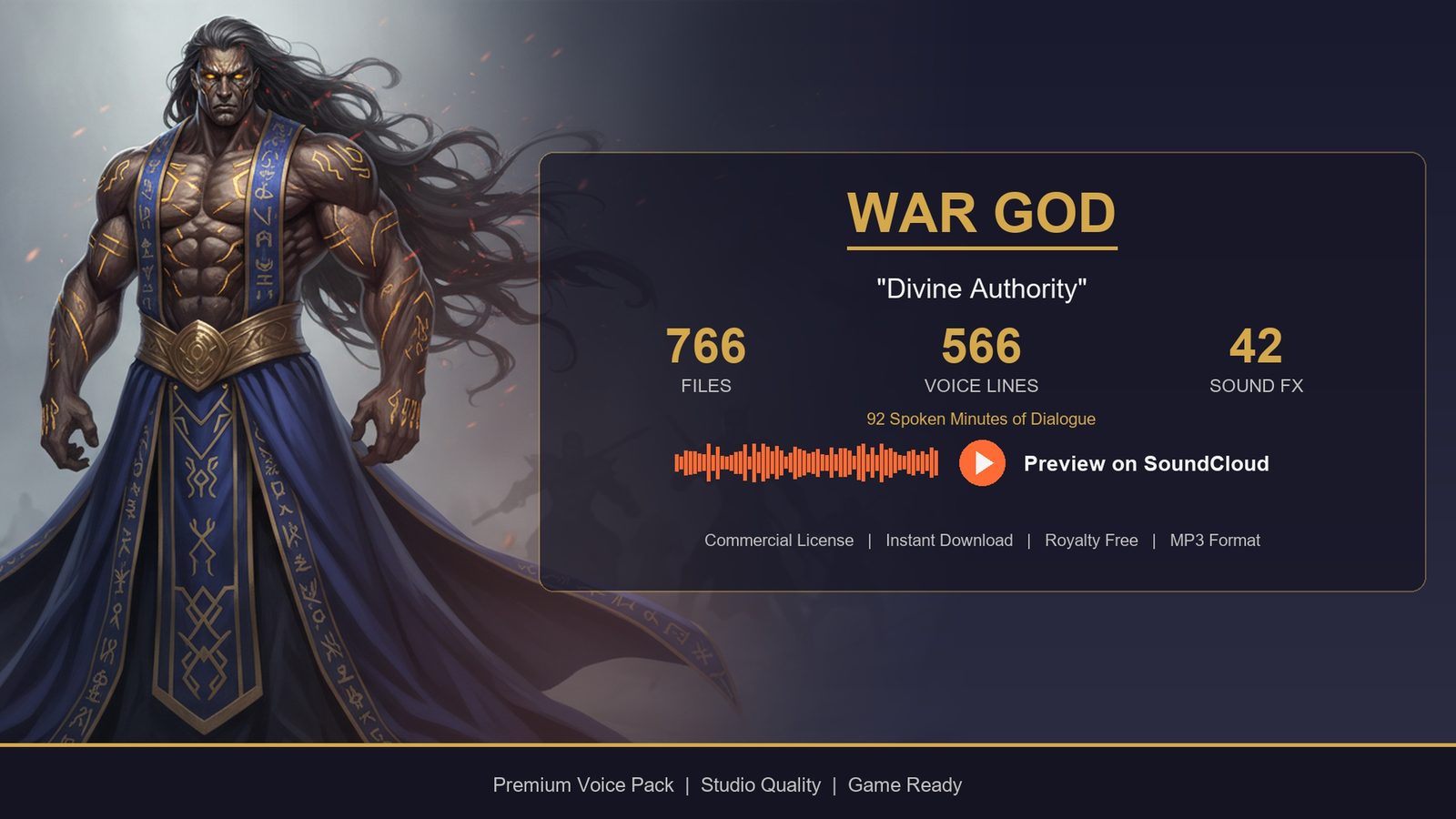
Deity Dialogue Pack
Booming pronouncements and divine narration — 92 minutes of deity dialogue for gods, oracles and otherworldly beings. Cinematic voice cues to give your RPG's higher powers a real presence.
Related on Fab

Related reading